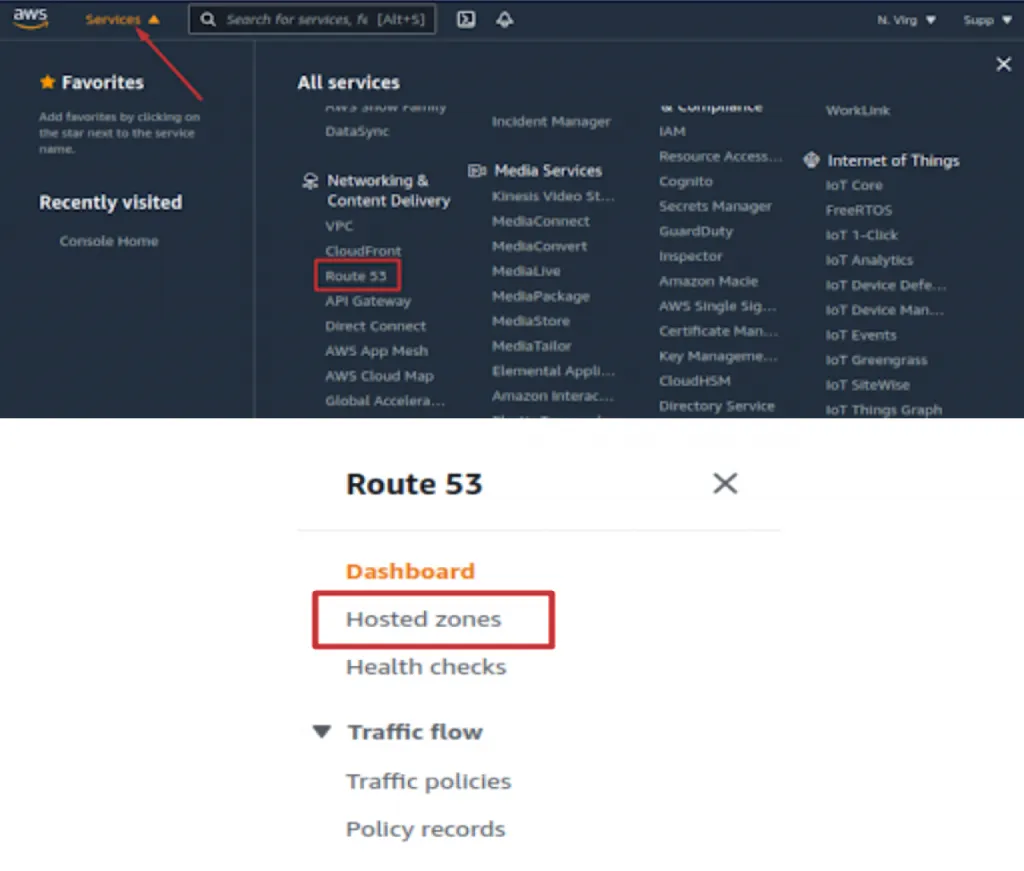
- Sign in to your AWS account. Navigate to ‘Services > Network & Content Delivery > Route 53’.
- In the ‘Router 53’ console in the left pane, click ‘Hosted zones’.
- On the ‘Hosted zones’ page, navigate to the domain you wish to add the DMARC record to and click on the ‘Create Record Set’ button.
- In the subsequent form, enter the following details and then click ‘Create’:
- From the ‘Type’ drop-down list, select ‘TXT’
- In the ‘Host’ field, enter ‘_dmarc’
- In the ‘Value TXT’ field, enter the record sent to you by email or generated using EmailAuth’s DMARC Generator.
 You have now successfully added the record!
Check the published DMARC record using EmailAuth’s DMARC validator. It may take anywhere between 24 to 72 hours for the record to reflect in your DNS.