DomainKeys Identified Mail (DKIM) is an anti-tamper protocol that ensures the security of your emails in transit. The DKIM standard uses digital signatures to check that the email was sent by a specific domain.
After you successfully set up DKIM for Marketo, it will automatically sign all outgoing mails with a shared Marketo signature.
To set up DKIM for your domain, follow these steps :
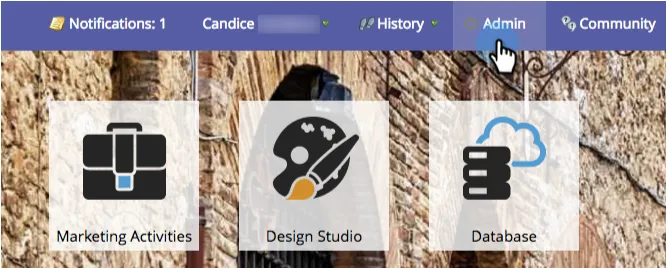
- Log in to your Marketo account and go to the Admin section.
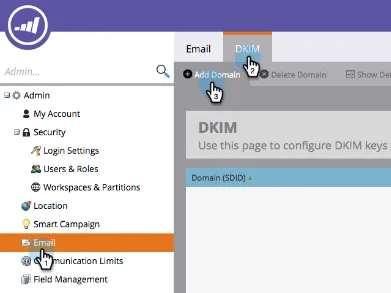
- Click on ‘Email’. Go to the DKIM tab and subsequently click on ‘Add Domain’.
- Add the domain of your choice.
- Copy the Hostname and record value as shown in the image below and add it to your DNS management console. Wait for 24-48 hours for the changes to take effect.
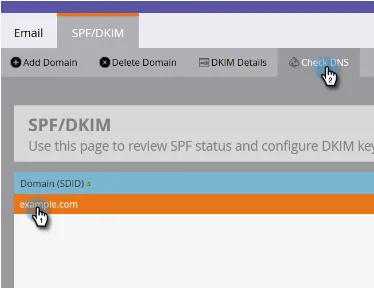
- Once you have done that, come back to Marketo and click on ‘Check DNS’. You will see a confirmation if you have set up the records on your DNS correctly.
Check and verify your DKIM records using our free DKIM validator tool.