DomainKeys Identified Mail (DKIM) is an anti-tamper protocol that ensures that your email remains secure in transit. DKIM uses digital signatures to check that the email was sent by a specific domain.
Before you can create a DKIM key for Constant Contact, make sure your webmaster is intimated into the process.
Creating a DKIM Key
- Login to your account on Constant Contact here.
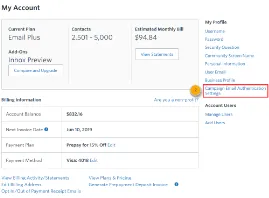
- Select ‘My Account’ from the upper-right corner of your page.
- Go to the ‘My Profile’ section and select ‘Campaign Email Authentication Settings’.
- Select the ‘Self-Authentication using your own domain’ button.
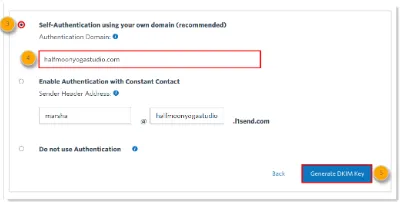
- Type in your domain name.
- Click on ‘Generate DKIM Key’.
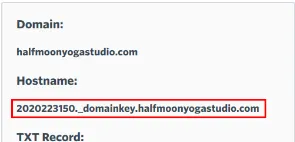
- Copy the generated key and store it.
Publishing the Generated DKIM Key
There are two ways to publish the DKIM key. You can either contact your Domain Admin or manually go to your management console and publish the records in the relevant section.
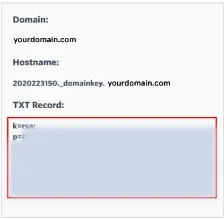
The name of the TXT record will be used as Hostname, and the value of the record will be used as the TXT record content.
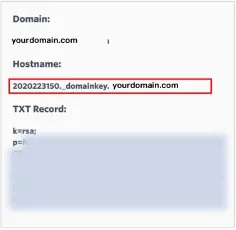
Check your DKIM record using EmailAuth’s free DKIM validator tool.